Connect Claude Code to the gateway
Start a DeepSeek Flash session, read a project file, then switch to another gateway model. Follow the numbered steps below with your delivered Multi-Model Gateway key and address.
Configure once · switch models inside the Agent
Includes the eight-model configuration and setup instructions. Merge into your existing settings and replace the key or path placeholders locally.
Individual files remain available in the numbered steps below.
Before you begin
- Have your activated gateway key and its confirmed endpoint ready.
- Choose a local project with a README.md for the first conversation.
- Run shell commands in Terminal on macOS / Linux, or inside WSL on Windows. Paste prompts and slash commands inside the Agent.
Use the gateway credentials and model IDs in this guide. A direct DeepSeek Platform key, endpoint or setup script configures a different service.
1. Install and check your version
Install the Agent using its official guide below. Terminal examples use macOS / Linux or Windows WSL. If already installed, check your version and continue.
Use Claude Code 2.1.242 or later for the eight-model picker in this guide. Run claude --version and update through the official installation guide if needed. Older versions can still select each model with the exact /model commands below.
Run in Terminal ·Terminal
claude --version2. Prepare your gateway key
Have your delivered Multi-Model Gateway key ready. You will insert it in the local settings file in the next step; there is no separate shell export.
This guide requires activated access and the confirmed gateway URL supplied with your key.
3. Configure the gateway and models
Create ~/.config/multi-model-gateway/claude and save settings.json there. On Windows, follow these commands inside WSL. Replace the key placeholder locally and keep the file private.
This is a separate profile for the gateway. Keep your normal Claude settings as they are. If this gateway file already exists, merge the fields into it.
Download settings.json below or copy the identical JSON. It includes the gateway connection and all eight modelPicker entries, so /model lists the actual model names. Replace the key placeholder before starting Claude Code.
Read the three parts separately: model selects the startup model; modelPicker.options lists all eight selectable models; env supplies the connection and alias mappings. The three ANTHROPIC_DEFAULT_*_MODEL values are fixed shortcut targets, not the model list. This example points them all to DeepSeek Flash so calls using Claude aliases reach an available gateway model. You may assign each a different gateway ID. These mappings do not follow later /model changes.
Save this as the user settings file in the dedicated directory shown here, not as a project's .claude/settings.json: Claude ignores modelPicker in project settings. If the menu is unchanged, check your version and /status for managed settings that override the lineup.
Run in Terminal ·Create the private configuration directory
mkdir -p "$HOME/.config/multi-model-gateway/claude"
chmod 700 "$HOME/.config/multi-model-gateway/claude"
Configuration ·~/.config/multi-model-gateway/claude/settings.json
Save as ~/.config/multi-model-gateway/claude/settings.json, replace the key placeholder, then restart with the launch command below. Merge into this file if it already exists.
{
  "model": "deepseek-flash",
  "modelPicker": {
    "replaceBuiltInOptions": true,
    "options": [
      {
        "model": "deepseek-flash",
        "label": "DeepSeek Flash",
        "description": "deepseek-flash"
      },
      {
        "model": "glm-5.3-flash",
        "label": "GLM-5.3-Flash",
        "description": "glm-5.3-flash"
      },
      {
        "model": "mimo-flash",
        "label": "MiMo V2.6 Flash",
        "description": "mimo-flash"
      },
      {
        "model": "mimo-pro",
        "label": "MiMo V2.6 Pro",
        "description": "mimo-pro"
      },
      {
        "model": "glm-5.3",
        "label": "GLM-5.3",
        "description": "glm-5.3"
      },
      {
        "model": "kimi-k3",
        "label": "Kimi-K3",
        "description": "kimi-k3"
      },
      {
        "model": "qwen3.8-max",
        "label": "Qwen3.8 Max",
        "description": "qwen3.8-max"
      },
      {
        "model": "minimax-m3",
        "label": "MiniMax M3",
        "description": "minimax-m3"
      }
    ]
  },
  "env": {
    "ANTHROPIC_BASE_URL": "https://multi-api.deepseekv4pro.com",
    "ANTHROPIC_AUTH_TOKEN": "REPLACE_WITH_YOUR_DELIVERED_GATEWAY_KEY",
    "ANTHROPIC_DEFAULT_OPUS_MODEL": "deepseek-flash",
    "ANTHROPIC_DEFAULT_SONNET_MODEL": "deepseek-flash",
    "ANTHROPIC_DEFAULT_HAIKU_MODEL": "deepseek-flash"
  }
}
Run in Terminal ·After saving settings.json
chmod 600 "$HOME/.config/multi-model-gateway/claude/settings.json"Reference ·Available model IDs · reference
DeepSeek Flash: deepseek-flash
GLM-5.3-Flash: glm-5.3-flash
MiMo V2.6 Flash: mimo-flash
MiMo V2.6 Pro: mimo-pro
GLM-5.3: glm-5.3
Kimi-K3: kimi-k3
Qwen3.8 Max: qwen3.8-max
MiniMax M3: minimax-m3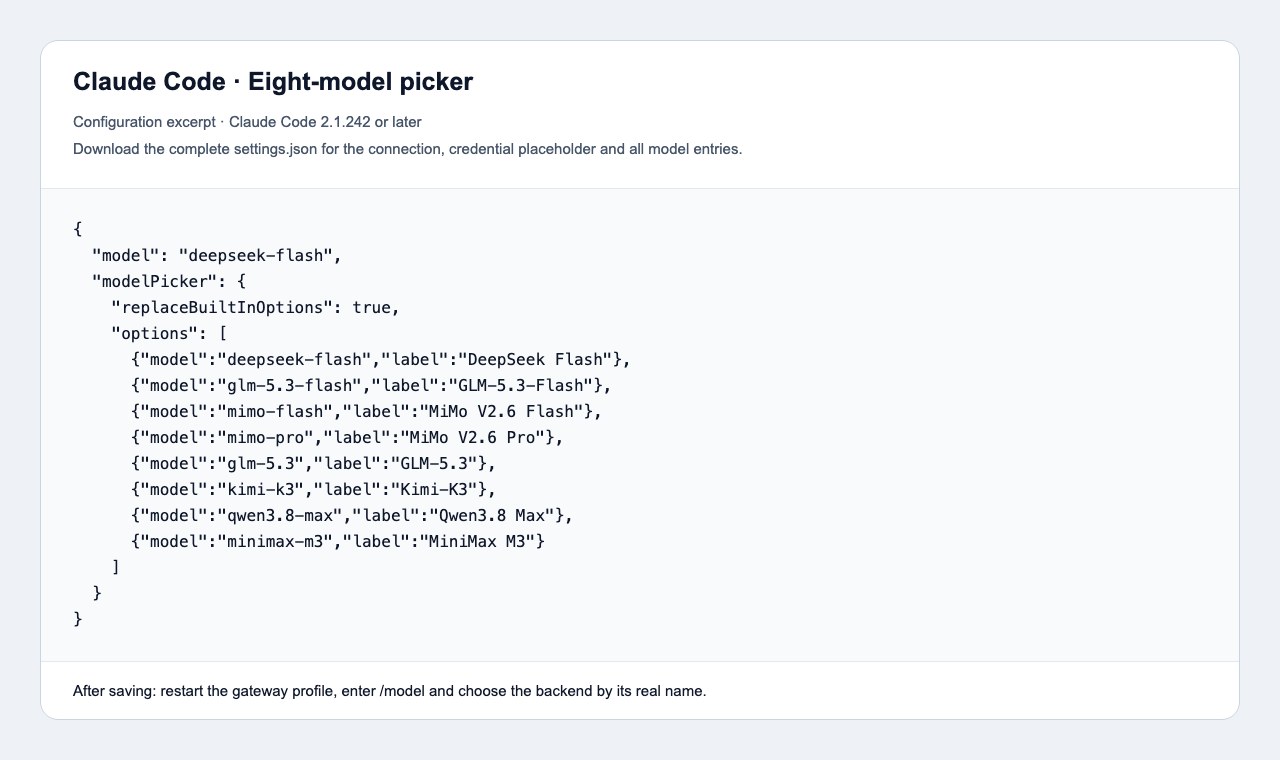
4. Check model names
No model renaming is needed in this CLI setup. Open /model to see all eight models by their real names, then select the one you want. Each modelPicker entry pairs a readable label with the exact gateway model ID.
The settings in step 3 replace the built-in picker lineup with the eight gateway models. Claude also keeps a Default row, which can add a context suffix such as [1m]; select a named gateway row to use its exact ID.
The opus, sonnet and haiku aliases have separate, fixed mappings. In this example, /model opus selects DeepSeek Flash, while /model kimi-k3 selects Kimi K3. Switching the main model does not update those mappings. The aliases also apply to opusplan, agents that explicitly request them, and Haiku background tasks. You can change each ANTHROPIC_DEFAULT_*_MODEL value to any gateway ID listed above, then restart.
You can also type an exact command below, such as /model minimax-m3. This works as a fallback on versions older than 2.1.242. Desktop uses a separate compatibility endpoint and Claude-style IDs; do not copy its IDs into this CLI profile.
| Actual backend | CLI command |
|---|---|
| DeepSeek Flash | /model deepseek-flash |
| GLM-5.3-Flash | /model glm-5.3-flash |
| MiMo V2.6 Flash | /model mimo-flash |
| MiMo V2.6 Pro | /model mimo-pro |
| GLM-5.3 | /model glm-5.3 |
| Kimi-K3 | /model kimi-k3 |
| Qwen3.8 Max | /model qwen3.8-max |
| MiniMax M3 | /model minimax-m3 |
5. Start Claude Code
In a trusted project folder, run the command below each time you want a gateway session. CLAUDE_CONFIG_DIR separates its user settings, sessions and plugins from your normal Claude profile.
Run /status to confirm the endpoint and setting sources. Project and managed settings can still apply; inspect them if the provider differs. Use the exact /model commands from step 4 to switch. This launch command starts a fresh session on DeepSeek Flash each time.
Run in Terminal ·Terminal
CLAUDE_CONFIG_DIR="$HOME/.config/multi-model-gateway/claude" claude --model deepseek-flashEnter in the Agent ·Inside Claude Code
/status6. Choose reasoning effort
Start on DeepSeek Flash. Choose Low, send a short file-reading task, then choose High and repeat. Check the current setting after each change. A longer answer by itself does not prove the effort changed.
Effort means how much reasoning to request. Kimi K3, GLM 5.3 and GLM 5.3 Flash offer Low / High / Max with thinking always enabled. Choose Low for shorter reasoning; there is no Off option. Their model default is Max, but a client setting can override it. DeepSeek and Qwen have their own intensity levels listed below.
MiMo has an On / Off switch; High is the client's label for On. MiniMax M3 supports Off / Auto / On through thinking.type (disabled / adaptive / enabled). Its effort-only menus expose Off and High (On); Auto needs a native thinking control. These modes are not separate Low / High / Max intensities. Follow this Agent's default and switching instructions below; a supported control does not set a session's starting value.
Run /effort status to inspect the effective setting. /effort opens the selector; /effort low and /effort high set a level. In current versions these choices can save a per-model default in modelSettings. Use the selector's session-only action or a launch flag such as --effort high for a temporary choice; Max is session-only. Use /effort auto to clear your manual selection; Claude can still choose and send its own effort.
For MiniMax M3, start a dedicated CLI session with the native mode below. Replace adaptive with enabled for On. For Off, use the second command, which also clears the conflicting effort. This launch setting applies to every request in that session; exit and relaunch normally before switching to another model.
- DeepSeek Flash
- Off / Low / High / Max
- Starting setting: Check the current client setting
- Start with Low; choose High or Max for more reasoning, or Off to disable thinking. Medium and XHigh requests map to High; Ultra maps to Max.
- GLM-5.3-Flash
- Low / High / Max
- Starting setting: Check the current client setting
- Choose Low for shorter reasoning, High for more reasoning, or Max for the largest budget. Thinking is always enabled; there is no Off option. The model default is Max unless the client sends a different effort.
- MiMo V2.6 Flash
- Off / On
- Starting setting: Check the current client setting
- Choose On to enable thinking or Off to disable it. In clients that label On as High, choose High. There are no separate Low, Medium or High intensities.
- MiMo V2.6 Pro
- Off / On
- Starting setting: Check the current client setting
- Choose On to enable thinking or Off to disable it. In clients that label On as High, choose High. There are no separate Low, Medium or High intensities.
- GLM-5.3
- Low / High / Max
- Starting setting: Check the current client setting
- Choose Low for shorter reasoning, High for more reasoning, or Max for the largest budget. Thinking is always enabled; there is no Off option. The model default is Max unless the client sends a different effort.
- Kimi-K3
- Low / High / Max
- Starting setting: Check the current client setting
- Choose Low for shorter reasoning, High for more reasoning, or Max for the largest budget. Thinking is always enabled; there is no Off option. The model default is Max unless the client sends a different effort.
- Qwen3.8 Max
- Off / Low / Medium / XHigh
- Starting setting: Check the current client setting
- Start with Low; choose Medium or XHigh for more reasoning, or Off to disable thinking. High, Max and Ultra requests all map to XHigh.
- MiniMax M3
- Off / Auto / On
- Starting setting: Check the current client setting
- Choose disabled, adaptive or enabled with thinking.type. Effort-only menus expose Off and High (On); they cannot select Auto. An explicit thinking mode takes precedence over an enabled effort. M3 has modes, not separate Low / High / Max intensities.
| Model | What can I change? | Starting setting | What should I do? |
|---|---|---|---|
| DeepSeek Flash | Off / Low / High / Max | Check the current client setting | Start with Low; choose High or Max for more reasoning, or Off to disable thinking. Medium and XHigh requests map to High; Ultra maps to Max. |
| GLM-5.3-Flash | Low / High / Max | Check the current client setting | Choose Low for shorter reasoning, High for more reasoning, or Max for the largest budget. Thinking is always enabled; there is no Off option. The model default is Max unless the client sends a different effort. |
| MiMo V2.6 Flash | Off / On | Check the current client setting | Choose On to enable thinking or Off to disable it. In clients that label On as High, choose High. There are no separate Low, Medium or High intensities. |
| MiMo V2.6 Pro | Off / On | Check the current client setting | Choose On to enable thinking or Off to disable it. In clients that label On as High, choose High. There are no separate Low, Medium or High intensities. |
| GLM-5.3 | Low / High / Max | Check the current client setting | Choose Low for shorter reasoning, High for more reasoning, or Max for the largest budget. Thinking is always enabled; there is no Off option. The model default is Max unless the client sends a different effort. |
| Kimi-K3 | Low / High / Max | Check the current client setting | Choose Low for shorter reasoning, High for more reasoning, or Max for the largest budget. Thinking is always enabled; there is no Off option. The model default is Max unless the client sends a different effort. |
| Qwen3.8 Max | Off / Low / Medium / XHigh | Check the current client setting | Start with Low; choose Medium or XHigh for more reasoning, or Off to disable thinking. High, Max and Ultra requests all map to XHigh. |
| MiniMax M3 | Off / Auto / On | Check the current client setting | Choose disabled, adaptive or enabled with thinking.type. Effort-only menus expose Off and High (On); they cannot select Auto. An explicit thinking mode takes precedence over an enabled effort. M3 has modes, not separate Low / High / Max intensities. |
Enter in the Agent ·Inside the Agent · send each command separately
/effort status
/effort low
/effort status
/effort high
/effort status
Run in Terminal ·Terminal · MiniMax M3 Auto thinking
CLAUDE_CONFIG_DIR="$HOME/.config/multi-model-gateway/claude" CLAUDE_CODE_EXTRA_BODY='{"thinking":{"type":"adaptive"}}' claude --model minimax-m3Run in Terminal ·Terminal · MiniMax M3 thinking Off
CLAUDE_CONFIG_DIR="$HOME/.config/multi-model-gateway/claude" CLAUDE_CODE_EXTRA_BODY='{"thinking":{"type":"disabled"},"output_config":{"effort":"none"}}' claude --model minimax-m3Check /status for managed, project and user settings. A fixed CLAUDE_CODE_EFFORT_LEVEL, a saved modelSettings effort, an older effortLevel setting or a disabled thinking mode can override or conflict with your selection. Keep fixed environment overrides out of the gateway profile when you want interactive control.
In CLI, Kimi K3 and both GLM models accept /effort low, /effort high or /effort max. Claude may offer a broader menu than a backend supports. High / Max on Qwen both select XHigh; MiMo does not distinguish enabled intensities.
/effort auto clears a manual intensity; it is not MiniMax's Auto thinking mode. Claude Code 2.1.299 can still send High in Auto mode. Auto does not guarantee an omitted parameter. For MiniMax M3, the explicit thinking mode takes precedence over an enabled effort.
7. Choose a model and start working
Open /model and select DeepSeek Flash, then MiniMax M3. The downloaded settings list all eight models. You can also enter the exact /model commands below. No key or URL changes are needed.
Open a project with a README.md and send the file-reading prompt below. Approve access to the file if prompted. You can switch models later without changing the key or gateway address.
You can also ask a question or search for current documentation. Send each example as a separate message.
Enter in the Agent ·Ask a question
What is 6 × 7?Enter in the Agent ·Read a project file
Use the file-reading tool to read README.md in the selected project and summarize its purpose in one sentence. Do not modify any files.Enter in the Agent ·Find documentation
Use WebSearch to find the official Claude Desktop gateway documentation. Summarize the setup requirements and include source links.Switch models in Claude Code
Use one command or picker entry at a time. An arrow means choose the entry in the picker; it is not part of a command. Your key must have access to the model you choose.
- DeepSeek Flash
/model deepseek-flash - GLM-5.3-Flash
/model glm-5.3-flash - MiMo V2.6 Flash
/model mimo-flash - MiMo V2.6 Pro
/model mimo-pro - GLM-5.3
/model glm-5.3 - Kimi-K3
/model kimi-k3 - Qwen3.8 Max
/model qwen3.8-max - MiniMax M3
/model minimax-m3
Connection reference
Keep these values consistent with the configuration above.
| Parameter | Value and purpose |
|---|---|
| Base URL | https://multi-api.deepseekv4pro.comThe client adds /v1/messages to this address. |
| API protocol | Anthropic Messages |
| API key | Use your delivered gateway key in the location shown in the setup steps. Replace credential placeholders locally. |
| Starting model | deepseek-flash |
Optional: check the API connection
Agent protocol: Anthropic Messages. This Bash command uses the same API protocol with DeepSeek Flash. First export MULTI_MODEL_API_KEY in your terminal even if you saved the key in a settings file. The response should contain a short reply from DeepSeek Flash.
curl --fail-with-body "https://multi-api.deepseekv4pro.com/v1/messages" \
  -H "Authorization: Bearer $MULTI_MODEL_API_KEY" \
  -H "anthropic-version: 2023-06-01" \
  -H "Content-Type: application/json" \
  -d '{"model":"deepseek-flash","messages":[{"role":"user","content":"Reply with a short hello."}],"max_tokens":256}'
Troubleshooting
- Models are missing
- Check the active config path, restart the Agent and look for project overrides. In Codex, check model_catalog_json; in OpenClaw, check model allowlists. Older Claude Code versions can use /model with an exact ID.
- Claude name and actual model differ
- Use /model followed by the gateway ID from step 4. In this profile, opus, sonnet and haiku all point to DeepSeek Flash. If a session starts on a different model, check /status, ANTHROPIC_MODEL in your shell, and project settings.
- Chat works but search fails
- Confirm that search is enabled for your gateway access. Send the provider the client version, selected model and error with credentials removed.
- 401 / 404
- 401: confirm the key is available to the running process. 404: check the model ID and base URL. Claude Code uses the root host; the other Agents here use /v1.
- 429 / unavailable endpoint
- Read the error for quota or provider capacity. Changing models does not refill points. Before activation, use only the confirmed endpoint supplied with your key.