Connect DSH (DeepSeek Harness) to the gateway
Start a DeepSeek Flash session, read a project file, then switch to another gateway model. Follow the numbered steps below with your delivered Multi-Model Gateway key and address.
DSH local web interface · launch from a terminal
Includes the eight-model capability merge patch and setup instructions. Create the connection in Settings first; select an effort before the first request on each model.
Individual files remain available in the numbered steps below.
Before you begin
- Have your activated gateway key and its confirmed endpoint ready.
- Choose a local project with a README.md for the first conversation.
- Run shell commands in Terminal on macOS / Linux, or inside WSL on Windows. Paste prompts and slash commands inside the Agent.
Use the gateway credentials and model IDs in this guide. A direct DeepSeek Platform key, endpoint or setup script configures a different service.
1. Install and check your version
Install the Agent using its official guide below. Terminal examples use macOS / Linux or Windows WSL. If already installed, check your version and continue.
Run in Terminal ·Terminal
npm install -g @deepseek-ai/dsh
dsh web2. Connect the provider
Open the local address printed by dsh web, then Settings → Models → Add model provider → Custom model API.
Set Provider ID to multi-model-gateway and Display name to Multi-Model Gateway. Use OpenAI Chat Completions and the base URL below, then enter your delivered key in the API key field.
Reference ·Base URL
https://multi-api.deepseekv4pro.com/v1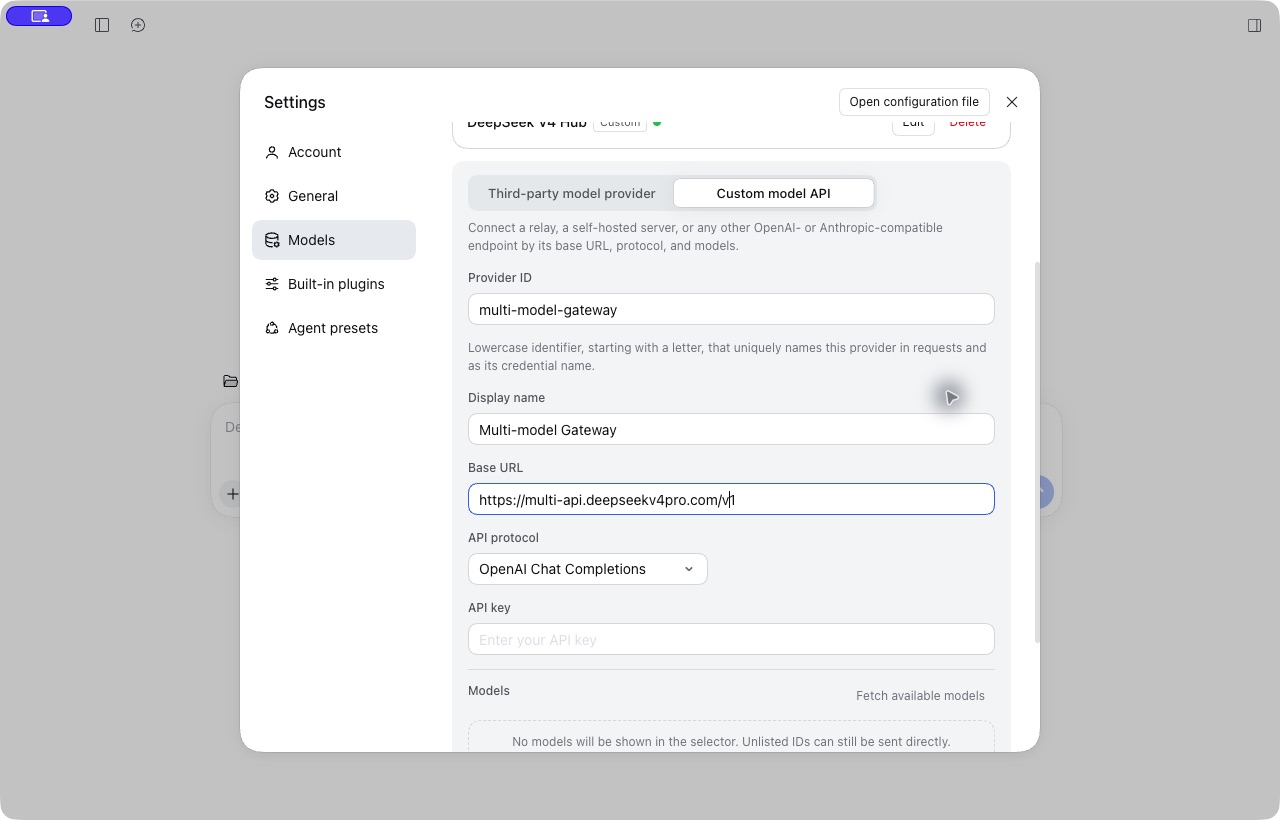
3. Add all models
Click Fetch available models. Select all gateway entries, then Add selected and save the provider. A successful discovery uses the models enabled for your key.
If discovery is unavailable, click Add model and enter each Model ID and Display name from the list below. Repeat for all eight entries, then click Create provider. Your key must include access to the models you use.
Reference ·Model names and exact IDs
DeepSeek Flash: deepseek-flash
GLM-5.3-Flash: glm-5.3-flash
MiMo V2.6 Flash: mimo-flash
MiMo V2.6 Pro: mimo-pro
GLM-5.3: glm-5.3
Kimi-K3: kimi-k3
Qwen3.8 Max: qwen3.8-max
MiniMax M3: minimax-m3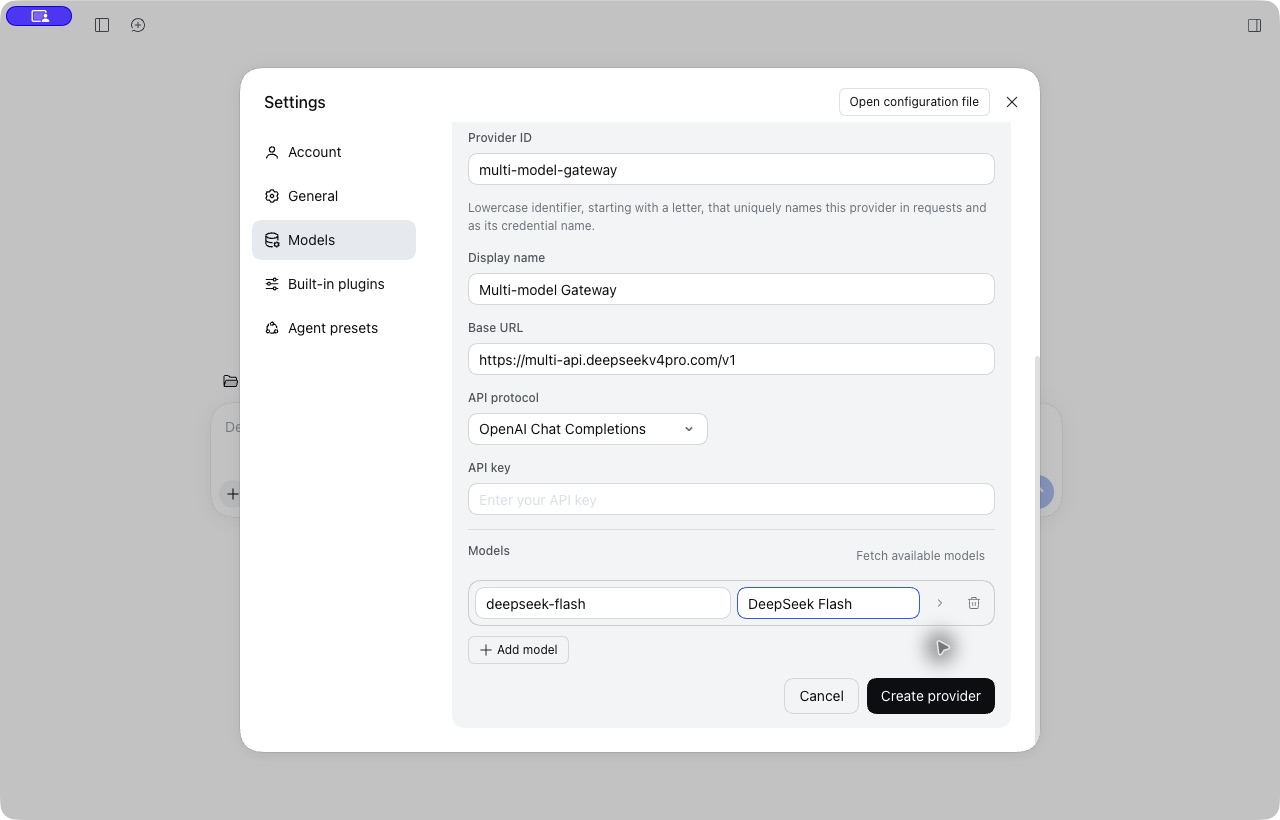
4. Open a session
Open a project and start a session. In the composer model picker, choose Multi-Model Gateway → DeepSeek Flash.
The local web profile and native Desktop profile may differ. Repeat provider setup only when connecting a separate profile.
5. Choose reasoning effort
Start on DeepSeek Flash. Choose Low, send a short file-reading task, then choose High and repeat. Check the current setting after each change. A longer answer by itself does not prove the effort changed.
Effort means how much reasoning to request. Kimi K3, GLM 5.3 and GLM 5.3 Flash offer Low / High / Max with thinking always enabled. Choose Low for shorter reasoning; there is no Off option. Their model default is Max, but a client setting can override it. DeepSeek and Qwen have their own intensity levels listed below.
MiMo has an On / Off switch; High is the client's label for On. MiniMax M3 supports Off / Auto / On through thinking.type (disabled / adaptive / enabled). Its effort-only menus expose Off and High (On); Auto needs a native thinking control. These modes are not separate Low / High / Max intensities. Follow this Agent's default and switching instructions below; a supported control does not set a session's starting value.
Model discovery or manual entry may provide names without reasoning metadata. If the Effort menu is missing, stop the app and merge the models below into the existing multi-model-gateway provider in the active profile's cordis.patch.yml. For dsh web, this is $DSH_HOME/profiles/web/cordis.patch.yml; use Open configuration file in the Settings header to locate it when available. Desktop has its own profile: locate the profile used by that app instead of editing the web profile.
Preserve the existing plugin identifier, API key reference, URL and other providers. Current profiles identify this plugin as id: llm-pi-ai; older profiles can use name: '@deepseek-ai/dsh-llm-pi-ai'. Update existing model entries by id instead of duplicating them. Restart, select DeepSeek Flash, then open the model picker's Effort menu and choose Low or High. The picker saves the selection as the default for new sessions.
This download is a capability patch, not a connection configuration or a thinking default. Before the first request on every model, select a legal effort explicitly: High for DeepSeek, Max for Kimi and GLM, XHigh for Qwen, and High (On) for MiMo and MiniMax. An unset selection can leave thinking Off on some models. After switching models, inspect the selection again; the patch does not establish per-model defaults.
- DeepSeek Flash
- Off / Low / High / Max
- Starting setting: Choose before the first request
- Start with Low; choose High or Max for more reasoning, or Off to disable thinking. Medium and XHigh requests map to High; Ultra maps to Max.
- GLM-5.3-Flash
- Low / High / Max
- Starting setting: Choose before the first request
- Choose Low for shorter reasoning, High for more reasoning, or Max for the largest budget. Thinking is always enabled; there is no Off option. The model default is Max unless the client sends a different effort.
- MiMo V2.6 Flash
- Off / On
- Starting setting: Choose before the first request
- Choose On to enable thinking or Off to disable it. In clients that label On as High, choose High. There are no separate Low, Medium or High intensities.
- MiMo V2.6 Pro
- Off / On
- Starting setting: Choose before the first request
- Choose On to enable thinking or Off to disable it. In clients that label On as High, choose High. There are no separate Low, Medium or High intensities.
- GLM-5.3
- Low / High / Max
- Starting setting: Choose before the first request
- Choose Low for shorter reasoning, High for more reasoning, or Max for the largest budget. Thinking is always enabled; there is no Off option. The model default is Max unless the client sends a different effort.
- Kimi-K3
- Low / High / Max
- Starting setting: Choose before the first request
- Choose Low for shorter reasoning, High for more reasoning, or Max for the largest budget. Thinking is always enabled; there is no Off option. The model default is Max unless the client sends a different effort.
- Qwen3.8 Max
- Off / Low / Medium / XHigh
- Starting setting: Choose before the first request
- Start with Low; choose Medium or XHigh for more reasoning, or Off to disable thinking. High, Max and Ultra requests all map to XHigh.
- MiniMax M3
- Off / On
- Starting setting: Choose before the first request
- High means On. Auto needs the native thinking.type=adaptive control; this setup's effort selector does not expose Auto. Check the current selection before sending.
| Model | What can I change? | Starting setting | What should I do? |
|---|---|---|---|
| DeepSeek Flash | Off / Low / High / Max | Choose before the first request | Start with Low; choose High or Max for more reasoning, or Off to disable thinking. Medium and XHigh requests map to High; Ultra maps to Max. |
| GLM-5.3-Flash | Low / High / Max | Choose before the first request | Choose Low for shorter reasoning, High for more reasoning, or Max for the largest budget. Thinking is always enabled; there is no Off option. The model default is Max unless the client sends a different effort. |
| MiMo V2.6 Flash | Off / On | Choose before the first request | Choose On to enable thinking or Off to disable it. In clients that label On as High, choose High. There are no separate Low, Medium or High intensities. |
| MiMo V2.6 Pro | Off / On | Choose before the first request | Choose On to enable thinking or Off to disable it. In clients that label On as High, choose High. There are no separate Low, Medium or High intensities. |
| GLM-5.3 | Low / High / Max | Choose before the first request | Choose Low for shorter reasoning, High for more reasoning, or Max for the largest budget. Thinking is always enabled; there is no Off option. The model default is Max unless the client sends a different effort. |
| Kimi-K3 | Low / High / Max | Choose before the first request | Choose Low for shorter reasoning, High for more reasoning, or Max for the largest budget. Thinking is always enabled; there is no Off option. The model default is Max unless the client sends a different effort. |
| Qwen3.8 Max | Off / Low / Medium / XHigh | Choose before the first request | Start with Low; choose Medium or XHigh for more reasoning, or Off to disable thinking. High, Max and Ultra requests all map to XHigh. |
| MiniMax M3 | Off / On | Choose before the first request | High means On. Auto needs the native thinking.type=adaptive control; this setup's effort selector does not expose Auto. Check the current selection before sending. |
Configuration ·Merge model capabilities into the active profile
Capability patch only, not a complete connection config. First create the provider in Settings, then merge these eight model entries into that provider in the active profile's cordis.patch.yml. Preserve its URL, key reference, plugin ID and other settings; do not replace the whole profile. Select an effort before the first request on each model.
- id: llm-pi-ai
  config:
    providers:
      multi-model-gateway:
        compat:
          supportsDeveloperRole: false
        models:
          - id: deepseek-flash
            reasoningEfforts:
              off: none
              low: low
              high: high
              max: max
          - id: glm-5.3-flash
            reasoningEfforts:
              low: low
              high: high
              max: max
          - id: mimo-flash
            reasoningEfforts:
              off: none
              high: high
          - id: mimo-pro
            reasoningEfforts:
              off: none
              high: high
          - id: glm-5.3
            reasoningEfforts:
              low: low
              high: high
              max: max
          - id: kimi-k3
            reasoningEfforts:
              low: low
              high: high
              max: max
          - id: qwen3.8-max
            reasoningEfforts:
              off: none
              low: low
              medium: medium
              xhigh: xhigh
          - id: minimax-m3
            reasoningEfforts:
              off: none
              high: high
Off maps explicitly to none. An empty off value only omits a parameter and can leave the server's default thinking enabled. Keep the supplied mappings.
6. Choose a model and start working
Open the model picker beside the message composer. Choose Multi-Model Gateway, then any model you added in step 3.
Open a project with a README.md and send the file-reading prompt below. Approve access to the file if prompted. You can switch models later without changing the key or gateway address.
Enter in the Agent ·Read a project file
Use the file-reading tool to read README.md in the selected project and summarize its purpose in one sentence. Do not modify any files.Switch models in DSH (DeepSeek Harness)
Use one command or picker entry at a time. An arrow means choose the entry in the picker; it is not part of a command. Your key must have access to the model you choose.
- DeepSeek Flash
Multi-Model Gateway → deepseek-flash - GLM-5.3-Flash
Multi-Model Gateway → glm-5.3-flash - MiMo V2.6 Flash
Multi-Model Gateway → mimo-flash - MiMo V2.6 Pro
Multi-Model Gateway → mimo-pro - GLM-5.3
Multi-Model Gateway → glm-5.3 - Kimi-K3
Multi-Model Gateway → kimi-k3 - Qwen3.8 Max
Multi-Model Gateway → qwen3.8-max - MiniMax M3
Multi-Model Gateway → minimax-m3
Connection reference
Keep these values consistent with the configuration above.
| Parameter | Value and purpose |
|---|---|
| Base URL | https://multi-api.deepseekv4pro.com/v1Keep the /v1 suffix in the provider base URL. |
| API protocol | OpenAI Chat Completions |
| API key | Use your delivered gateway key in the location shown in the setup steps. Replace credential placeholders locally. |
| Starting model | deepseek-flash |
Optional: check the API connection
Agent protocol: OpenAI Chat Completions. This Bash command uses the same API protocol with DeepSeek Flash. First export MULTI_MODEL_API_KEY in your terminal even if you saved the key in a settings file. The response should contain a short reply from DeepSeek Flash.
curl --fail-with-body "https://multi-api.deepseekv4pro.com/v1/chat/completions" \
  -H "Authorization: Bearer $MULTI_MODEL_API_KEY" \
  -H "Content-Type: application/json" \
  -d '{"model":"deepseek-flash","messages":[{"role":"user","content":"Reply with a short hello."}],"max_tokens":256}'
Troubleshooting
- Models are missing
- Check the active config path, restart the Agent and look for project overrides. In Codex, check model_catalog_json; in OpenClaw, check model allowlists. Older Claude Code versions can use /model with an exact ID.
- 401 / 404
- 401: confirm the key is available to the running process. 404: check the model ID and base URL. Claude Code uses the root host; the other Agents here use /v1.
- 429 / unavailable endpoint
- Read the error for quota or provider capacity. Changing models does not refill points. Before activation, use only the confirmed endpoint supplied with your key.